The Two Walls You Hit When You Hand an Agent a Browser#
2026-07-25
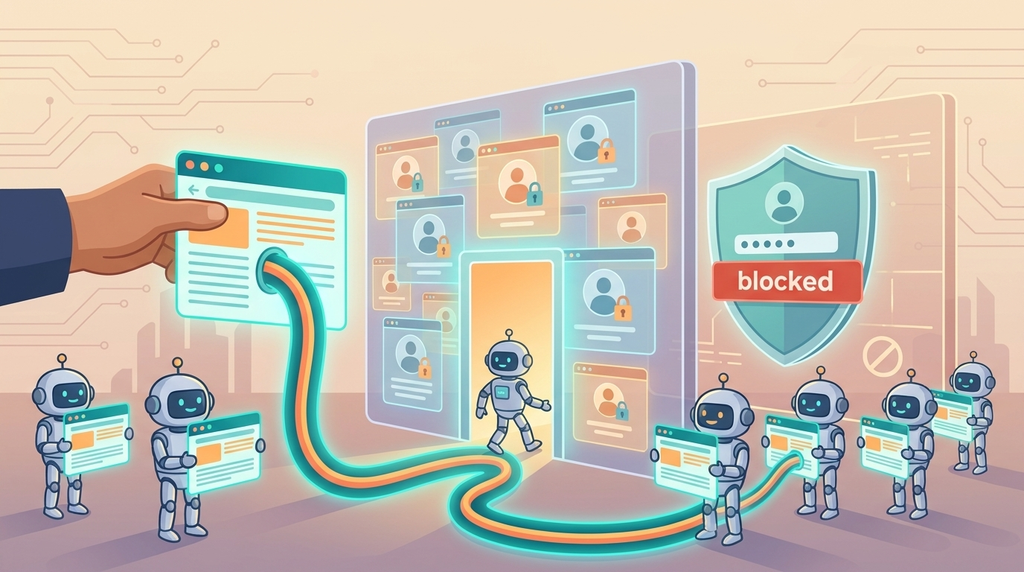
One principle I hold onto when delegating work to coding agents: if the agent changed the code, the agent should verify the result itself. For a web project, that means opening a browser and looking at the screen. For this I use MCP (Model Context Protocol, the standard for connecting external tools to agents) servers such as chrome-devtools-mcp and Playwright MCP. The agent launches Chrome, opens pages, clicks around, takes screenshots, and validates its own work.
Run this workflow for a while, though, and you hit two walls. One is Chrome colliding when you run multiple agent sessions in parallel; the other is Google blocking sign-in inside any Chrome the agent launched. This essay is a record of digging into the root cause of each and how I resolved them. As I wrote in a previous essay, I work by running several agent sessions side by side, so neither wall was something I could route around.
Wall One: “Chrome Is Already Running”#
While session A is doing browser verification, ask session B to verify something too, and B either refuses because Chrome is already running or — worse — kills A’s Chrome and launches its own. Parallel work gets serialized at the browser verification step.
The cause is two facts stacking on top of each other.
First, Chrome allows only one browser process per profile directory (user-data-dir). A second launch against the same profile hits a lock and either fails or gets delegated to the existing process.
Second, both MCP servers default to a shared persistent profile. chrome-devtools-mcp keeps a fixed profile path under its cache directory that every instance shares, and Playwright MCP also uses a persistent profile by default — its documentation states outright that “a persistent profile can only be used by one browser instance at a time.”
Each agent session does spawn its own MCP server process, but all those servers point at a single global Chrome profile, so collision is inevitable. The fix is, pleasantly, a single option. Both tools support an --isolated flag that gives every server instance its own temporary profile, its own Chrome, and automatic cleanup on exit.
"chrome-devtools": {
  "command": "npx",
  "args": ["chrome-devtools-mcp@latest", "--isolated"]
},
"playwright": {
  "command": "npx",
  "args": ["@playwright/mcp@latest", "--isolated"]
}
With this, parallel verification works with no limit on session count. The trade-off is that temporary profiles lose logins and cookies when the browser closes. For checking a local dev server that costs nothing — but the trade-off leads straight into the second wall.
Wall Two: “This Browser or App May Not Be Secure”#
Try signing in to Google inside a Chrome the agent launched, and you get blocked with this message. It makes no difference if a human types the ID and password directly into that browser. Any plan to have the agent verify pages behind a Google account stops here.
The cause is automation markers. When either MCP server launches Chrome, it attaches an automation-control flag (--enable-automation), and a browser in that state broadcasts “an automation tool is in control” — for instance, navigator.webdriver becomes true in JavaScript. Google’s sign-in servers reject login attempts from browsers showing these signals, as a defense against account-hijacking bots (Google’s official notice). It is not a problem with Chrome itself; Google simply refuses to trust a Chrome wearing the automation flag.
The way through lies in the exact scope of the block. Digging in, it turns out only the act of signing in is blocked — session cookies from an existing login work fine even in an automated browser. So do the login once in an environment without automation flags, and let the agent inherit only the artifact: a profile with the cookies in it.
The Attach Pattern#
Here we invert the setup. Instead of the MCP server launching Chrome, a human launches an ordinary Chrome, and the MCP server merely attaches to it.
open -na "Google Chrome" --args \
  --remote-debugging-port=9222 \
  --user-data-dir="$HOME/.cache/cdp-profiles/attach-9222"
A Chrome launched this way carries no automation flag, so Google sign-in works normally. Credentials persist in the dedicated profile, so you log in once. Meanwhile, --remote-debugging-port opens a CDP (Chrome DevTools Protocol, the protocol for controlling Chrome externally) port, through which the MCP server can navigate, click, and screenshot just as before. Only the connection option’s name differs between the tools.
"chrome-devtools-attach": {
  "command": "npx",
  "args": ["chrome-devtools-mcp@latest", "--browserUrl=http://127.0.0.1:9222"]
},
"playwright-attach": {
  "command": "npx",
  "args": ["@playwright/mcp@latest", "--cdp-endpoint", "http://127.0.0.1:9222"]
}
One caveat. Starting with Chrome 136, for security reasons the remote debugging port option is ignored on your default everyday profile (Chrome official blog). You must pass a separate --user-data-dir as in the command above — and this is less a constraint than the right direction. As I discuss below, wiring your daily browser to an agent is something to avoid in the first place.
Polishing It into an Operation#
The skeleton of the solution was in place, but running it day to day took two more refinements.
Who makes sure Chrome is running? The attach approach only works if Chrome is up first. Having a human remember and type the launch command every time is tedious, so I delegated the check itself to the agent. The procedure — “verify the debug port responds; if not, launch Chrome with the dedicated profile, then attach” — went into a project skill (a procedure document the agent follows for a given task). Now the human just says “verify this page in the logged-in Chrome.” Conveniently, both MCP servers connect to the browser at the first tool call rather than at session start, so attaching works even if Chrome comes up mid-session.
How do sessions share tabs? There is one attach Chrome, so multiple sessions end up sharing it. Fortunately the CDP port accepts multiple clients, and the “currently selected page” is tracked per MCP server instance. Nor is control limited to the visible foreground tab — navigation, clicks, and snapshots all work on background tabs. So the discipline written into the skill is: create your own tab when you start, work only in that tab, and close only your own tab when done. That settled cross-session interference. One limitation remains: Chrome throttles rendering in background tabs to save power, so timing-sensitive checks such as animations may be inaccurate there.
The final configuration forms a quadrant — pick the server by purpose.
| No login needed | Login needed | |
|---|---|---|
| Chrome DevTools | chrome-devtools (–isolated) | chrome-devtools-attach |
| Playwright | playwright (–isolated) | playwright-attach |
Ordinary verification across parallel sessions runs unrestricted in the left column; only checks that need a Google account go through the right column’s shared Chrome with tab separation.
A Note on Security#
There is one boundary I kept deliberately in this setup: any browser wired to an agent is always a dedicated profile. The attach profile holds only the accounts needed for verification. Your everyday browser carries live sessions for mail, cloud storage, even payment methods — handing an agent control of that widens the exposure for no reason. Chrome 136’s blocking of debugging on the default profile comes from the same concern. The more capable you make an agent, the more tightly you should scope what that capability can reach — that is the balance, as I see it.
Closing#
Looking back, both walls shared one root cause: browser automation tools ship with defaults built on the assumption of “one human, one session.” On that assumption, keeping a single global profile is natural, and so is assuming no human will ever sign in inside an automated browser. The moment several agents each hold their own browser, the assumption breaks — and the defaults turn into walls, all at once.
Perhaps tool-keeping in the agent era is exactly this: finding these stale assumptions one by one and updating them. This time it was the browser; the same kind of wall is surely waiting in other tools. When I hit one, I will dig into it and write it up again.