Leave the Laptop, Carry Only the Screen — The Reality of Moving Coding Agent Sessions#
2026-11-01
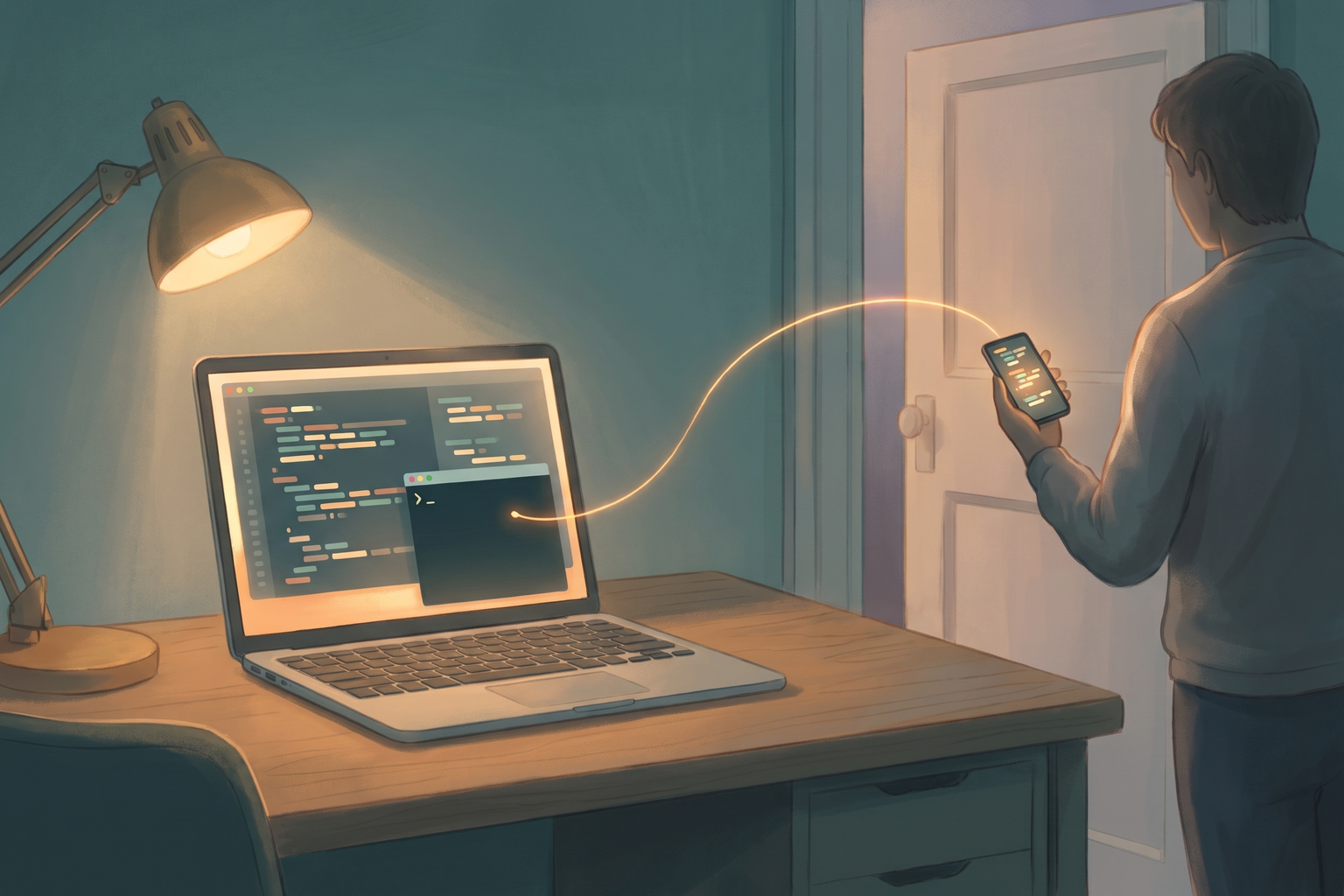
I move between places several times a day. Each time, closing the laptop with a coding agent still running on it and carrying it along was a hassle. The first solution that came to mind was simple: put the whole working session in the cloud and pick it up from wherever I am. This essay is the record of starting from that question, researching it, and trying things out.
Here is the conclusion up front. Right now, it is far easier to leave the computer where the work runs and move only the screen you look at, than to move the work to another computer. Neither Claude Code nor Codex officially offers a way to move a session, and the Docker workaround is possible but laborious. Instead, both tools have a feature for controlling work that runs on the laptop from a phone, and I ran into a few snags on the way to making that feature actually work.
Part 1. Why Sessions Are Hard to Move#
The three things that make up a session#
Unpack the phrase “move a session” and there are three things to move.
- Code: the working tree, including uncommitted changes. This moves with git.
- Conversation history: everything exchanged with the agent and every tool call it made. Claude Code keeps JSONL files under
.claude/projects/in the home directory, one folder per project path. A long session can reach tens of megabytes in a single file. Codex splits its history between.codex/sessions/and several SQLite databases. - Login credentials: on macOS these live in the Keychain and cannot be copied as files.
The three are stored in different places, in different formats, and each moves a different way. And the running process itself cannot be moved by any method. The only thing you can move is “the state at the moment it stopped.”
What the official features do and do not do#
I started with the official documentation for both tools, as of late October 2026.
Claude Code has a cloud session feature. Running claude --cloud "task description" makes a cloud virtual machine clone the current directory’s GitHub repository at the current branch and start a new session. In the other direction, claude --teleport brings a cloud session, conversation included, into the terminal. The documentation states this asymmetry plainly: session handoff from the CLI is one-way, and while you can pull a cloud session into the terminal, you cannot send an existing terminal session to the cloud. The desktop app has “Open in > Cloud” in its session menu, but according to the documentation the conversation goes over as a summary, not the full history.
Codex had a similar structure. codex cloud exec submits a new task to Codex Cloud, and codex cloud apply brings back only the changed code (a diff) to apply locally. Unlike Claude Code’s --teleport, which brings the conversation too, only the code comes back. The Codex extension installed in Cursor has a menu for choosing “Cloud” as where a chat runs, and the extension’s own wording was “create a new cloud chat that includes your current code and references this chat.” The current chat does not move; a new chat is created that references it. The Codex desktop app’s Handoff feature moves a chat between Local and Worktree on the same computer, or between other computers you have connected, and the official documentation says handoff to a Codex cloud environment is not supported.
| Method | Can the computer be turned off? | Does the conversation carry over? |
|---|---|---|
Claude Code --cloud | Yes | No. It is a new session |
| Claude Code desktop “Open in > Cloud” | Yes | Only as a summary |
Codex cloud exec | Yes | No. It is a new task |
| Codex extension “Cloud” mode | Yes | Only as a reference |
Either way, what you can do when the computer has to be turned off was the same: push the work as a WIP commit, write a note of what has been done and what comes next, and paste that note into the prompt of a new cloud session. The conversation history does not carry over, so a human ends up writing the handover document.
Would Docker solve it?#
The next idea was Docker. Build the local environment on Docker, and when it is time to move, build and push an image, then pull it somewhere else — in theory, the same environment.
Working through it, what goes into an image and what I wanted to move turned out to be different things. What goes into an image is tools and dependencies — the environment. What I wanted to move was code and conversation history — the state. docker commit, which turns a whole container into an image, does not include bind mounts or volumes. Since the code and the agent’s config directory are normally mounted, the very things I wanted to move do not end up in the image. Going the other way and baking them into the image instead of mounting them means the login token gets baked in too and pushed to a registry. Claude Code’s development container documentation also warns that the config directory holds authentication tokens together with session history.
Doing it properly means separating the roles: put only tools in the image, fix the working path inside the container, keep the conversation history on a volume so only that folder is copied when moving, and supply the login on the destination through environment variables. Fixing the path has one hidden advantage. Because Claude Code stores conversation history per folder path, if the path inside the container is the same everywhere, --resume on another computer will find that history.
Having laid this out, my judgment changed. Moving an environment identical to the local one onto a server is not simple, and even if you grind through it, every exception that comes up is hard to deal with. Better to put the development environment on a server from the start and only connect to it from the laptop. But that means keeping an instance running with specs as good as the laptop, and cost becomes the problem. The original question — “free movement of sessions” — ended with the conclusion that it is still not realistic.
Part 2. Changing Direction: Leave the Computer, Move Only the Screen#
The remote control option#
So I changed the question. Could I leave the laptop on at my desk and carry only a phone or tablet to keep working?
Claude Code has a feature for exactly this situation, called Remote Control. The session keeps running on the laptop, and the Claude app on the phone or a browser becomes a window into that session. In the documentation’s words, the web and mobile screens are a window onto the local session, so the computer has to stay on and the claude process has to keep running. Claude Code does not keep the Mac awake, so if the Mac sleeps, the connection drops too. I already run caffeinate -i in a terminal whenever I have a long job going, with the power connected and the lid open, so this condition was already in place. Closing the lid is something even caffeinate cannot prevent.
The advantage of this approach is that the problems from Part 1 disappear wholesale. Execution happens on the laptop, so there is no environment to match. The browser automation MCP servers, the analytics tools’ credentials, the user-level skills — all of it is used as is. The laptop only makes outbound connections and opens no inbound ports. In exchange, while connected, the conversation history is also stored on the server to keep devices in sync. The documentation states this explicitly.
What it took to make it work#
Going by the documentation alone, you run /remote-control and open the session on your phone, and that is it. In practice I got stuck in two places.
First, the Cursor extension and the terminal had different menus. I mostly use the Claude Code extension installed in Cursor. The documentation says to turn on “Enable Remote Control for all sessions” in /config, but the extension’s /config did not have that item. Checking the extension package’s UI strings, the toggle was in a separate Settings area of the command menu that appears when you type / in the input box. The short alias /rc does not appear in the autocomplete list, but it is registered in the code as the same command as /remote-control, so typing it in full worked. The documentation does note that the extension cannot name a session or display a QR code.
Second, the notifications did not arrive. This took the longest. The Cursor extension’s /config has no notification switches, so I turned on the two notification settings (inputNeededNotifEnabled, agentPushNotifEnabled) directly in the settings file, turned on notifications in the phone app, asked the Remote Control-connected session to send a notification in one minute, and locked the screen. Claude Code replied that it had “requested a phone notification,” but the phone stayed silent.
The cause was that the setting lives in two places. Notification settings are saved in the settings file on my computer, but they are also saved separately on the server that actually sends the push to the phone. I looked at how Claude Code reads and writes that setting in its executable, queried the server-side values by the same route, and found that the phone registration was fine (one Android device, refreshed that day) while the server-side values for both notifications were empty and therefore treated as “off.” The “Push when actions required” and “Push when Claude decides” switches in the terminal’s /config are exactly what change those server-side values, and editing the settings file by hand never reached the server. After turning on the server-side values and repeating the same test, the notification arrived on the phone.
One thing needs adding here. Notifications are not sent while you are in front of the Mac. On the first test, Claude Code replied that “this terminal is active, so the notification is skipped.” To test notifications, you have to leave the screen the moment you send the request. This behavior is by design, not a bug.
What it actually looks like on the phone#
Once connected, the Code tab in the phone’s Claude app shows the session with a computer icon and a green dot. From there you can send messages, approve permission requests, review changed code (diffs), and attach photos. It is the same conversation as the terminal, synchronized in real time, so when you return to your desk you can continue right from the terminal. When the work finishes or needs approval, a notification comes to the phone.
Some things do not work on mobile, though. Commands that only work on the terminal screen, such as /plugin and /resume, are local only. If you start server mode (claude remote-control --spawn worktree), a separate git worktree is created each time you open a new session from the phone, so multiple tasks do not touch the same files — but server mode is CLI only and not available from the extension.
Part 3. How Codex Differs#
With Claude Code sorted out, I tried the same thing with Codex. The conclusion was “a similar feature exists, but the unit it connects and the place you turn it on are different.”
Claude Code’s Remote Control connects one conversation. Only the session in which you ran /remote-control is visible on the phone. Codex’s Remote Control connects a computer. Once connected, you can open any project on that computer from the phone and start a new chat or continue an existing one. Setup is done in the ChatGPT desktop app rather than the terminal. Start from Settings > Connections > “Control this Mac or PC,” a QR code appears, and you scan it with your phone.
I got briefly lost here. I looked for a scan menu inside the ChatGPT app and there was none. Rereading the official documentation, it said that “scanning the code opens the ChatGPT app and completes the connection.” The QR code contains a link that opens the app, so you scan it with the phone’s default camera. You need to be logged in to the same account and the same workspace, and once connected, this Mac appears in the Codex tab of the ChatGPT app. I got this far, sent a query from the phone, and confirmed that an answer came back.
Two things I had to take care of outside Claude Code were built into Codex’s app settings. There is an option to keep the computer awake in the Connections settings, so there is no need to run caffeinate separately, and phone notifications when work finishes or needs approval are provided by default. On the other hand, the conditions are the same: Codex also loses the connection if the Mac sleeps, and closing the lid requires an external monitor. To turn it off, you switch Remote Control off in the same Connections settings; the pairing with the phone remains, so turning it back on shows the computer immediately without a QR code.
| Claude Code | Codex | |
|---|---|---|
| Unit connected | One conversation | The whole computer |
| Where you turn it on | Terminal or editor extension | ChatGPT desktop app |
| Phone app | Claude app → Code tab | ChatGPT app → Codex tab |
| Notifications | Two settings to turn on | Built in |
The Codex terminal also has codex remote-control start and pair commands, but the help marks them experimental and the official documentation does not describe them. I did not test them for this essay.
Closing#
The original question was “can a session in progress be moved to the cloud?” The answer was “not yet.” The code, conversation history, and login credentials that make up a session live in different places, and neither tool has opened a path from local to cloud. The Docker workaround is possible if you separate environment from state, but at that point it is better to keep the environment on a server, and then the cost follows.
Instead, both tools solved “looking in” before “moving.” Leave the laptop in place and use the phone as a window. Because there is no environment to match, this was far easier than moving, but getting it to actually work involved snags not fully written in the documentation — menu locations, power settings, and the server-side notification switch.
There will still be days when the laptop has to be shut down completely. On those days there is no choice but to commit, write a handover note, and start a new session, as laid out in Part 1. Having the agent write that handover note and the next session read it is a flow I plan to work out separately.
Appendix: Pre-flight Checklist for Remote Control#
For Claude Code.
# Continue the current conversation on your phone (Cursor extension and terminal)
/remote-control

# Connect every new conversation automatically (extension: Settings area of the command menu / terminal: /config)
Enable Remote Control for all sessions

# Phone notifications (terminal /config, the lines below "Local notifications")
Push when actions required
Push when Claude decides
# Keep the Mac from sleeping (power connected, lid open)
caffeinate -i
# To start several new tasks from the phone (CLI only)
caffeinate -i claude remote-control --spawn worktreeTo test notifications, ask the Remote Control-connected conversation to “send a notification in one minute” and lock the screen right away. Notifications are skipped while you are in front of the screen. If they still never arrive, flip the two switches in the terminal’s /config off and on — not the settings file — to set the server-side values.
For Codex.
# ChatGPT desktop app
Settings > Connections > Control this Mac or PC > Set up
→ Scan the on-screen QR code with the phone's default camera
→ When the ChatGPT app opens, confirm the same account and workspace, then approve
→ On the same screen, turn on "Keep computer awake"

# Turning it off
Settings > Connections > turn off Remote Control
The versions checked for this essay are Claude Code 2.1.316 (terminal) and 2.1.314 (Cursor extension), Codex CLI 0.166.0, and ChatGPT desktop app 26.1016.
References#
- Claude Code — Continue local sessions from any device with Remote Control
- Claude Code — Use Claude Code in the cloud
- Claude Code — Development containers
- Claude Code — Desktop app
- Codex — Remote connections
- Codex — Codex on mobile
- Codex — Run coding tasks in the cloud
- Codex — Worktrees (Handoff)
- Docker — Docker Sandboxes: Run Claude Code and Other Coding Agents Unsupervised (but Safely)